Before you start
- A paid ChatGPT plan. Custom MCP servers aren’t part of the free tier. ChatGPT Plus is enough, and anything above it works too.
- An Ophir account with early access — Ophir is in pre-beta. You’ll sign in partway through, and that sign-in is what authorizes the connection.
Add Ophir to ChatGPT
- 1Open the Plugins page. It’s in the ChatGPT sidebar. You’ll land on a directory of what you’ve already installed and what’s popular — this is where every connection lives.
- 2Start a custom connection. Click Add in the top right. From the menu that opens, choose Add custom MCP server.
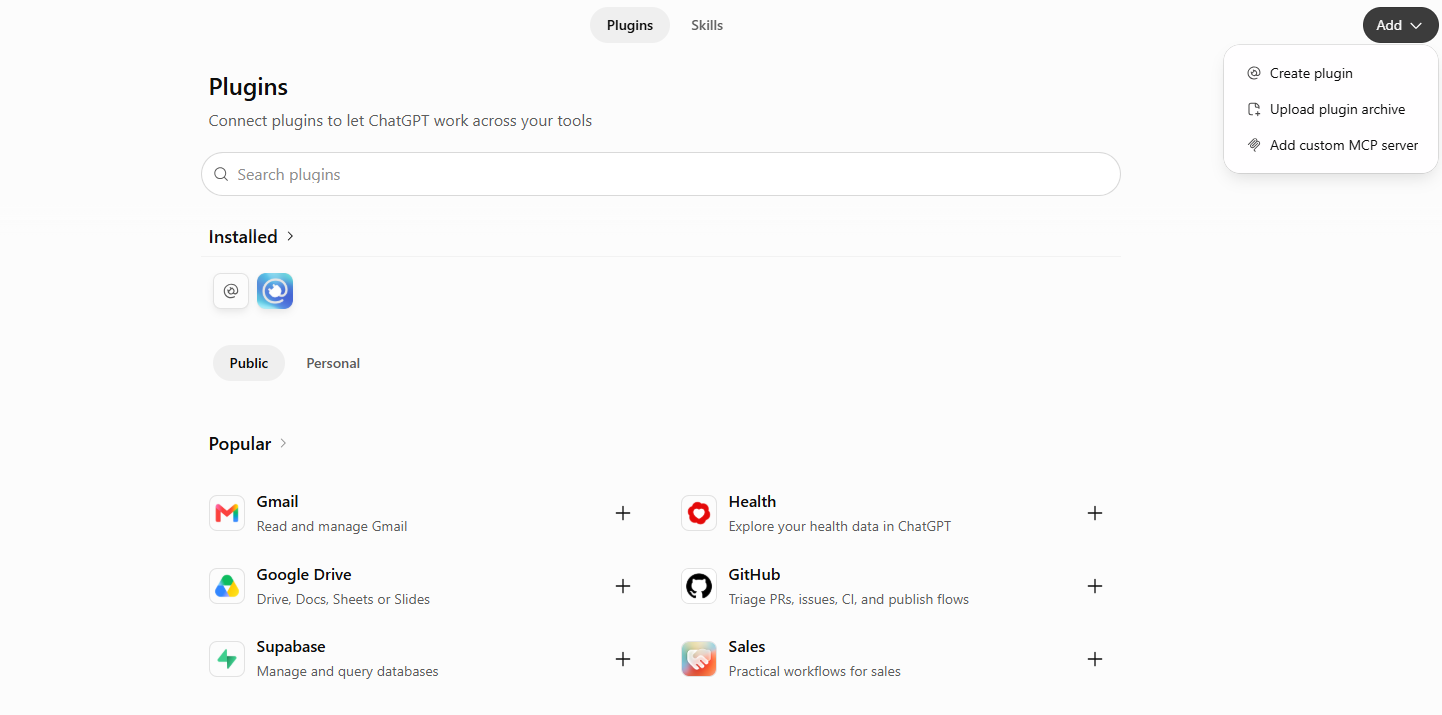
Add → Add custom MCP server. - 3Fill in four fields. The form has more on it than you need. These are the parts that matter:
- Icon — optional, but nice. Download the Ophir mark and upload it so Ophir is easy to pick out of your plugin list.
- Name —
Ophir - Connection — leave the toggle on Server URL, then paste
https://mcp.askophir.ai/mcp - I understand and want to continue — tick the checkbox at the bottom.
Authentication should be set to OAuth, which is likely the default. Then click Create as a plugin.
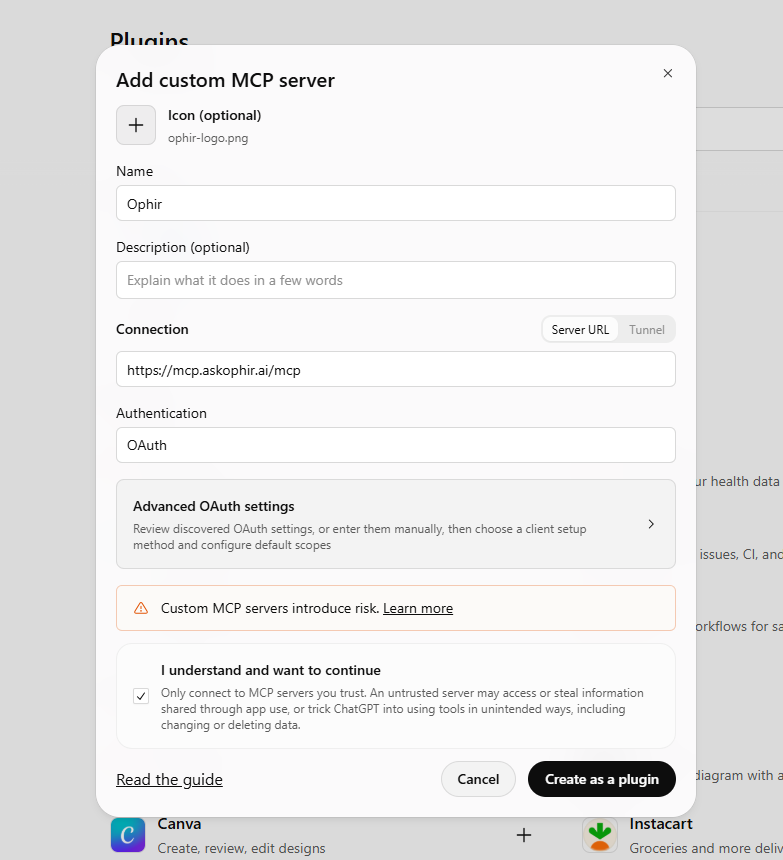
The finished form — Description stays empty, Authentication stays on OAuth. - 4Authorize with Ophir. ChatGPT explains what a connector can and can’t do, then offers Continue to Ophir. Click it. You’ll land on askophir.ai, where we check that you’re signed in and your subscription is active — follow the prompts and ChatGPT drops you back where you left off.
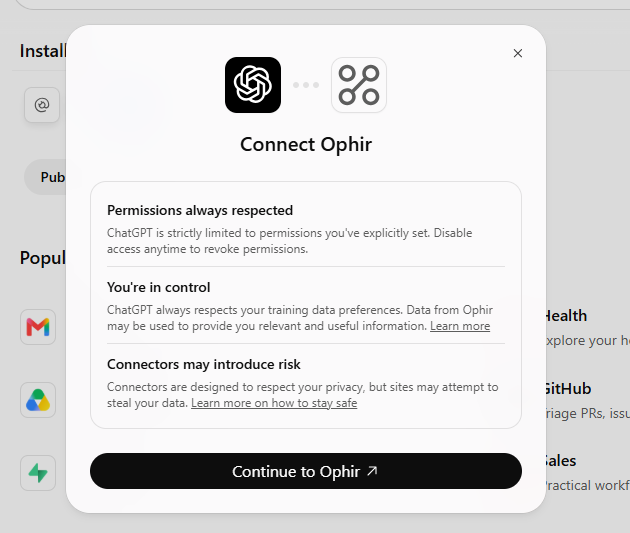
Continue to Ophir hands you off to askophir.ai. - 5Ask your first question. That’s the whole setup. Ophir is now available in every chat — new ones and the ones you already have going.

Your first question
Open a chat and ask something you’d normally pull up a terminal for. Ophir answers with real figures and draws the chart alongside them:
“What did the market close at today?”
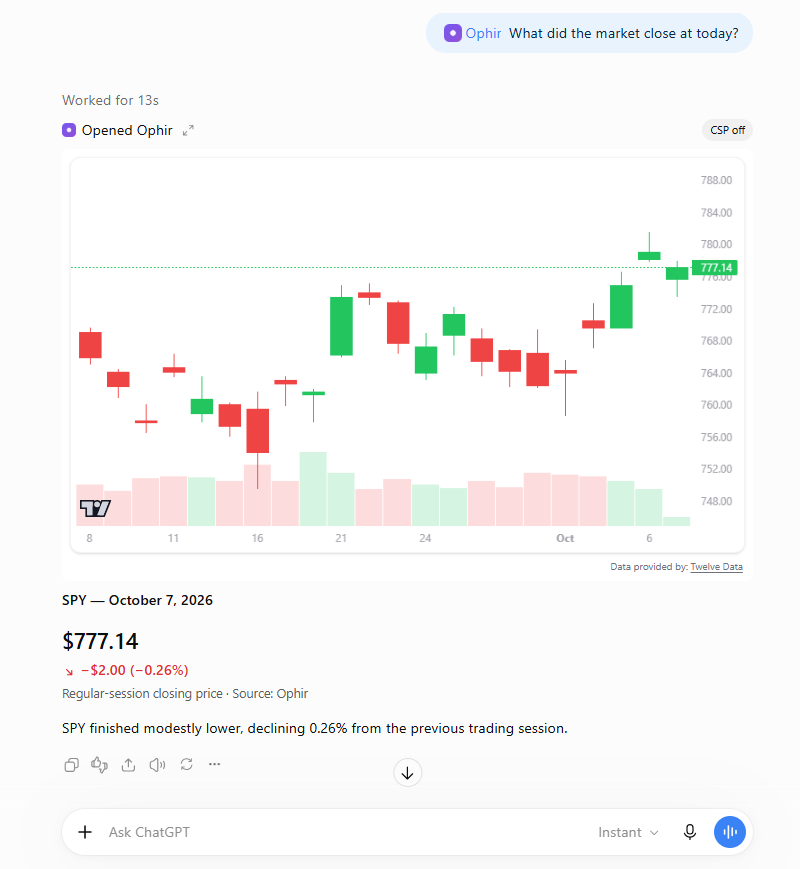
When ChatGPT reaches for Ophir
One thing worth knowing before you start. ChatGPT lets you type @ in the message box and pick a connector, which aims the question straight at it. That works with Ophir, and it’s the surest way to get it.
Without the @, Ophir is a tool like any other in ChatGPT’s kit, and ChatGPT decides prompt by prompt whether to reach for one. Name an instrument, a timeframe, or a level and it usually will. Ask something broad and it may answer on its own instead. That’s ChatGPT’s judgement call, not a fault in the connection — so if you want Ophir’s read specifically, @ it and you’ll get it.
Prefer dark charts?
Ophir’s charts follow ChatGPT rather than insisting on one look. Light is the default; switch ChatGPT’s appearance to Dark in its settings and the next chart renders dark to match — same data, same indicators, dark frame.
You’re connected
From here, the hard part isn’t the setup — it’s asking well. Ophir gives you most when you tell it the instrument, the timeframe you care about, and what you already hold. How to Analyze Any Chart With AI walks through exactly that, step by step. Or skip it, open a chat, and ask the question that’s already on your mind.