Before you start
- A Claude account. Any plan works, including Free. Free accounts can add one custom connector, so if you’ve already added one, remove it or upgrade first.
- An Ophir account with early access — Ophir is in pre-beta. You’ll sign in near the end, and that sign-in is what authorizes the connection.
Add Ophir to Claude
- 1Open your connectors list. In the sidebar, choose Customize, then Connectors, then Yours. That last tab is the one that matters — Discover lists what Anthropic ships, while Yours is where a connector you add yourself ends up. Anything already listed here can stay and Ophir will join it. On Free, that’s only true if none of them is a custom connector you added yourself.
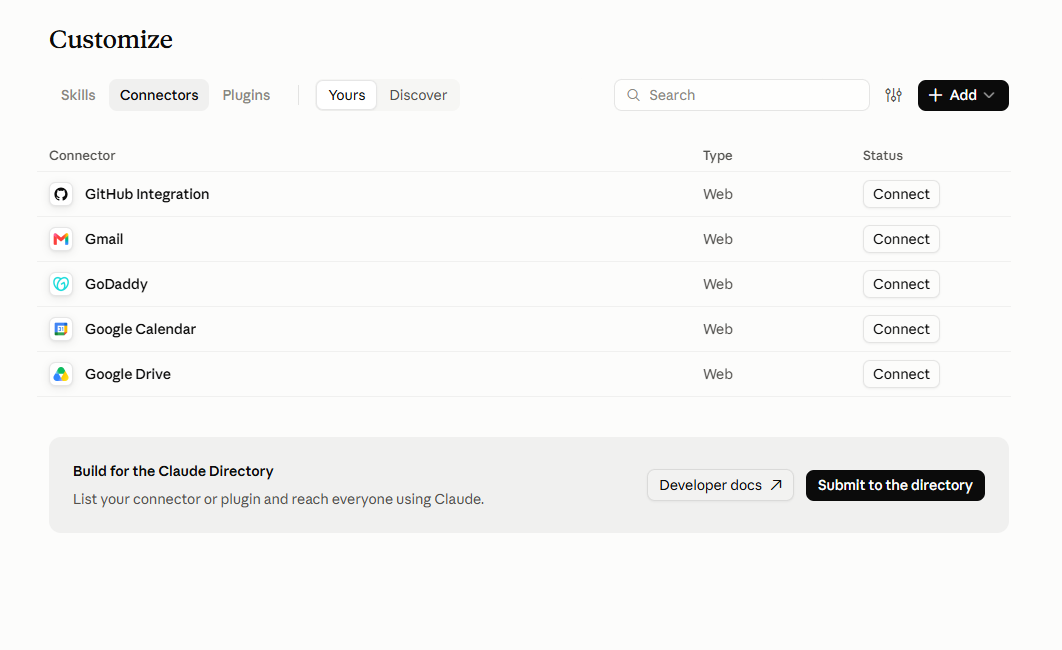
Customize → Connectors → Yours. - 2Start a custom connection. Click Add in the top right, then choose Add custom connector.
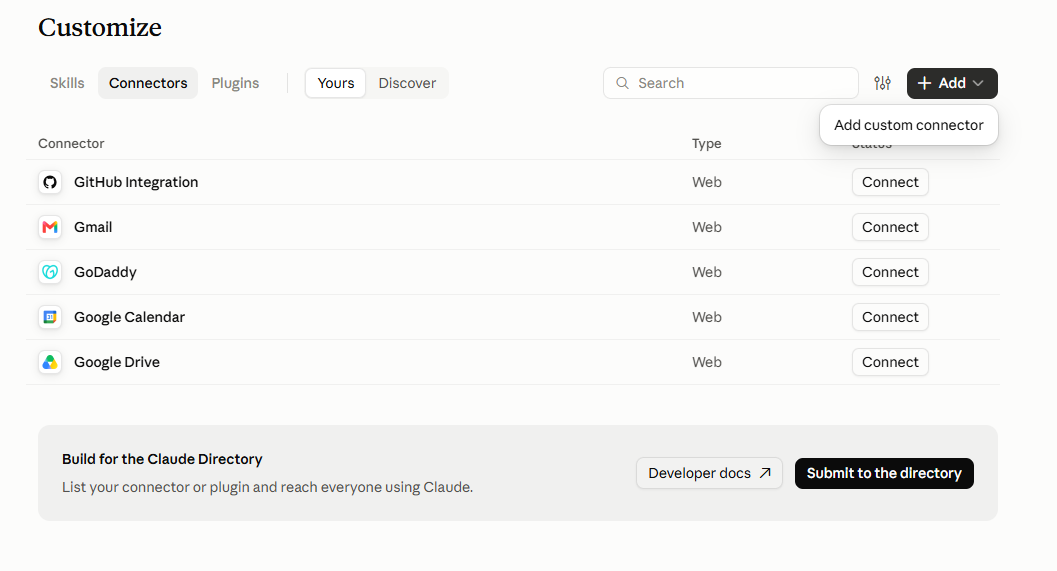
Add → Add custom connector. - 3Name it and point it at Ophir. Two boxes, in order:
- The first is the name shown in your connectors list —
Ophir - The second is the server address —
https://mcp.askophir.ai/mcp
Then click Continue.
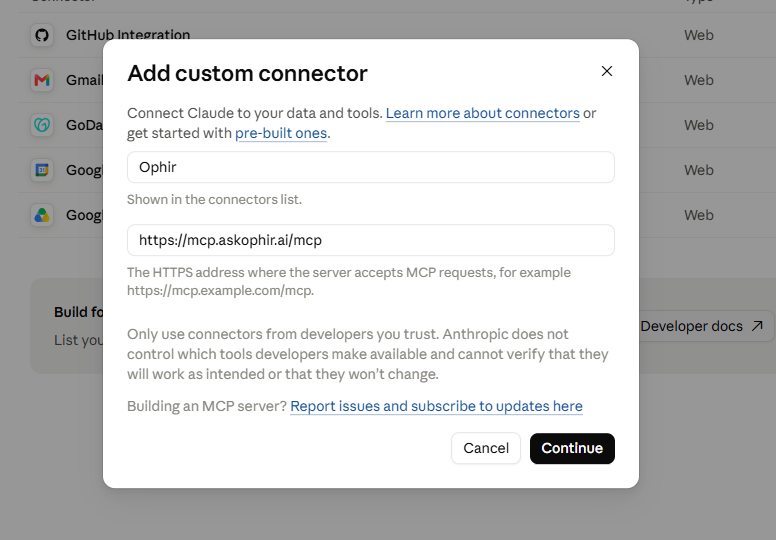
Name, then address, then Continue. - The first is the name shown in your connectors list —
- 4Leave the sign-in settings alone. Claude inspects the server and fills this screen in for you — both of the options you want should already be chosen, each marked Detected. Confirm them rather than changing them:
- Under Authentication, Sign in now
- Under OAuth client, Register automatically
Ignore Request headers and Advanced. Scroll to the bottom and click Add.
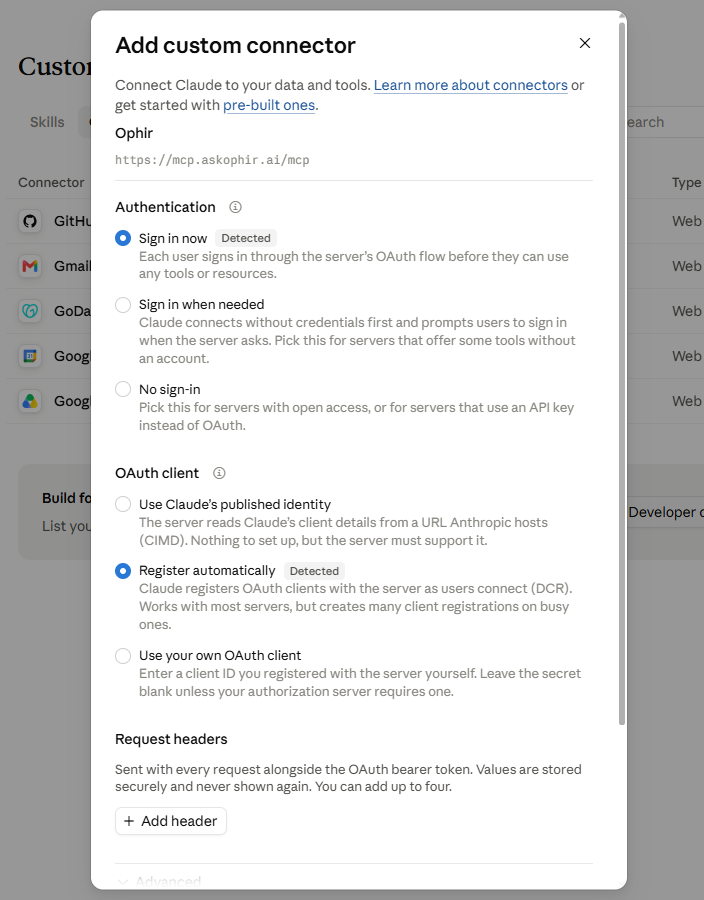
Both defaults are already right — scroll down and Add. - 5Connect. Ophir is in your list now, but not yet live — it has a Connect button beside it, same as every other connector. Click it. You’ll land on askophir.ai, where we check that you’re signed in and your subscription is active. Follow the prompts and Claude picks up where you left off.
Your first question
Open a chat and ask something you’d normally pull up a terminal for. Ophir answers with real figures and draws the chart alongside them:
“Ask Ophir what the market closed at yesterday.”
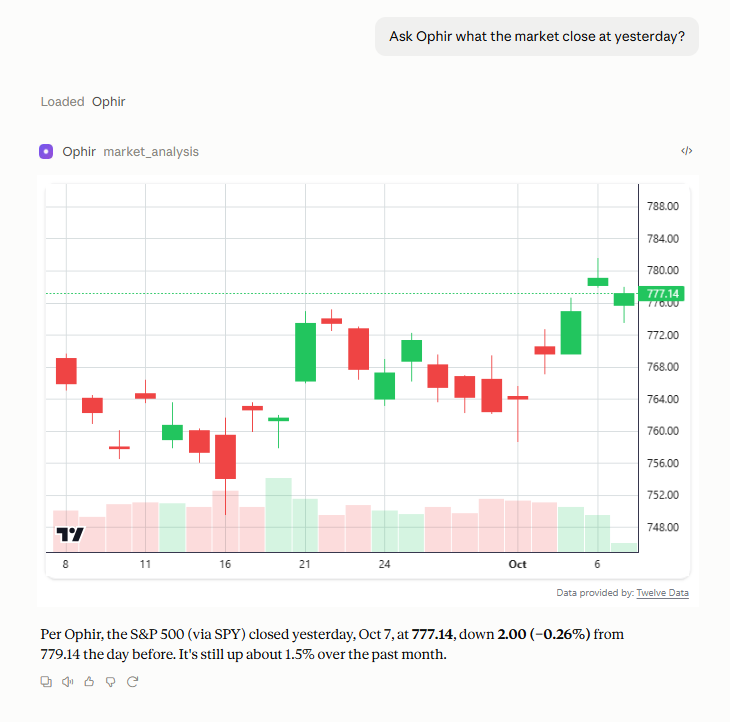
When Claude reaches for Ophir
One thing worth knowing before you start. Some apps let you aim a question at a particular connector — Claude doesn’t. There is no mention, no toggle that forces the issue. Ophir is a tool like any other in Claude’s kit, and Claude decides, prompt by prompt, whether to reach for one.
In practice that works out well. Name an instrument, a timeframe, or a level and Claude usually calls Ophir. Ask something broad and it may answer on its own instead. That’s Claude’s judgement call, not a fault in the connection — and naming Ophir in the question is the surest nudge you have. “Ask Ophir how gold has moved this month” leaves nothing to interpret.
Prefer dark charts?
Ophir’s charts follow the app they’re sitting in rather than insisting on one look. Switch Claude’s appearance to Dark in its settings and the next chart renders dark to match — same data, same indicators, dark frame.
You’re connected
From here, the hard part isn’t the setup — it’s asking well. Ophir gives you most when you tell it the instrument, the timeframe you care about, and what you already hold. How to Analyze Any Chart With AI walks through exactly that, step by step. Or skip it, open a chat, and ask the question that’s already on your mind.